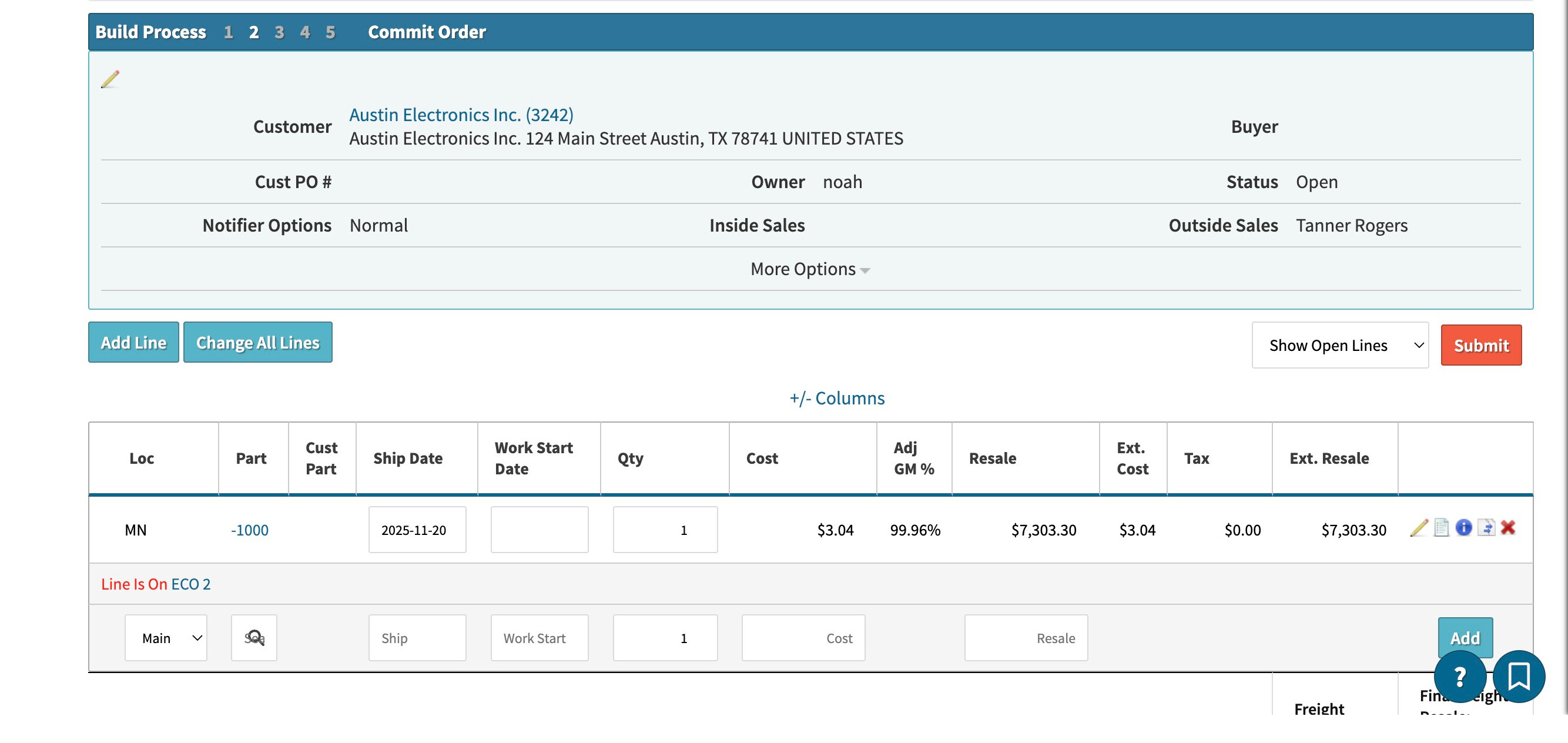
We create BOMs for part numbers and have multiple revisions to meet customer-specific requirements. For example, the same part may ship to multiple customers with different packing:
To handle this, we create multiple revisions of each part, which worked fine in previous versions. However, after Cetec 4.18/4.19, the BOM data changes automatically.
Upon investigation, we found that revisions like G00 & G01 exist, but only one revision can be active at a time. If Customer A’s order uses G00 but the active revision is G01, the system replaces G00 data with G01 upon committing the order.
We want to avoid creating multiple part numbers for each customer. How can we manage multiple BOM revisions for different customers without the system automatically replacing data?
Any guidance or best practices would be greatly appreciated.
Hi, just following up on my question posted 21 days ago.
We are still facing the same issue with BOM revisions (G00, G01, etc.) being overwritten automatically when only one revision can remain active. This is affecting customer-specific packing and BOM handling.
Could someone from the Cetec team or community please guide us on best practices to manage multiple BOM revisions for different customers without the system replacing data automatically?
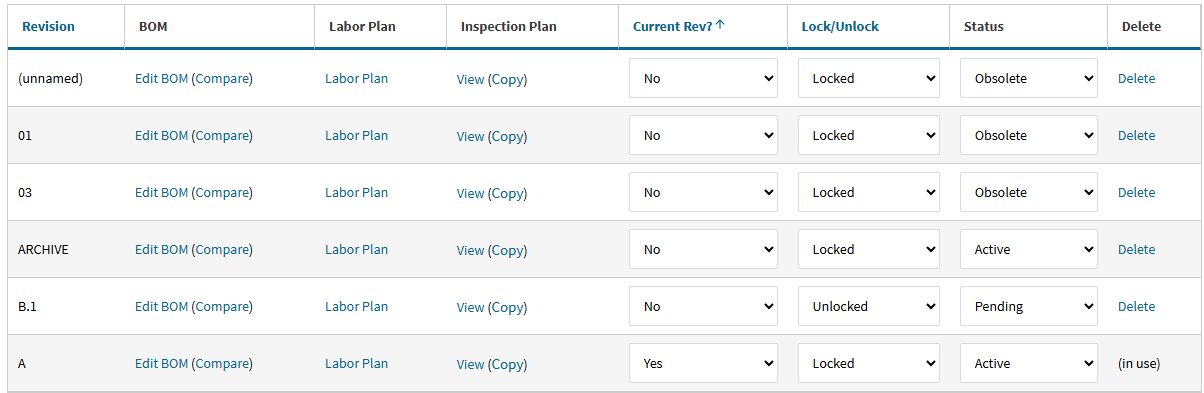
On the PART-REV screen you may create & manage ‘multiple’ REVs of the same Part#, one each for each of your customers, each with a slightly/ totally different BOM.
There can ONLY be One ‘Current REV’, which the system will Pick as default on the Order Screen every time.
However, you may have multiple REVs with ‘Active’ “Status” (or Pending if in ECO)
H Rana,
i’ll try to pitch in also,
I am going to assume that in your example
Customer A → BOM A with Packing C & D
Customer B → BOM A with Packing A & B
You mean that Packing A,B,C and D are parts or subassemblies.
And that you want to have two revisions of BOM A.
One that you use for customer A and one that you use for customer B.
So bom A revision A will look like this
PRT Packing C
PRT PAcking D
And BOM A revision B will Look like this
PRT Packing A
PRT Packing B
If my thinking is correct … Are you saying that if you on the order for customer A choose BOM A, Revision A as a part, it does not pick Packing C and D?
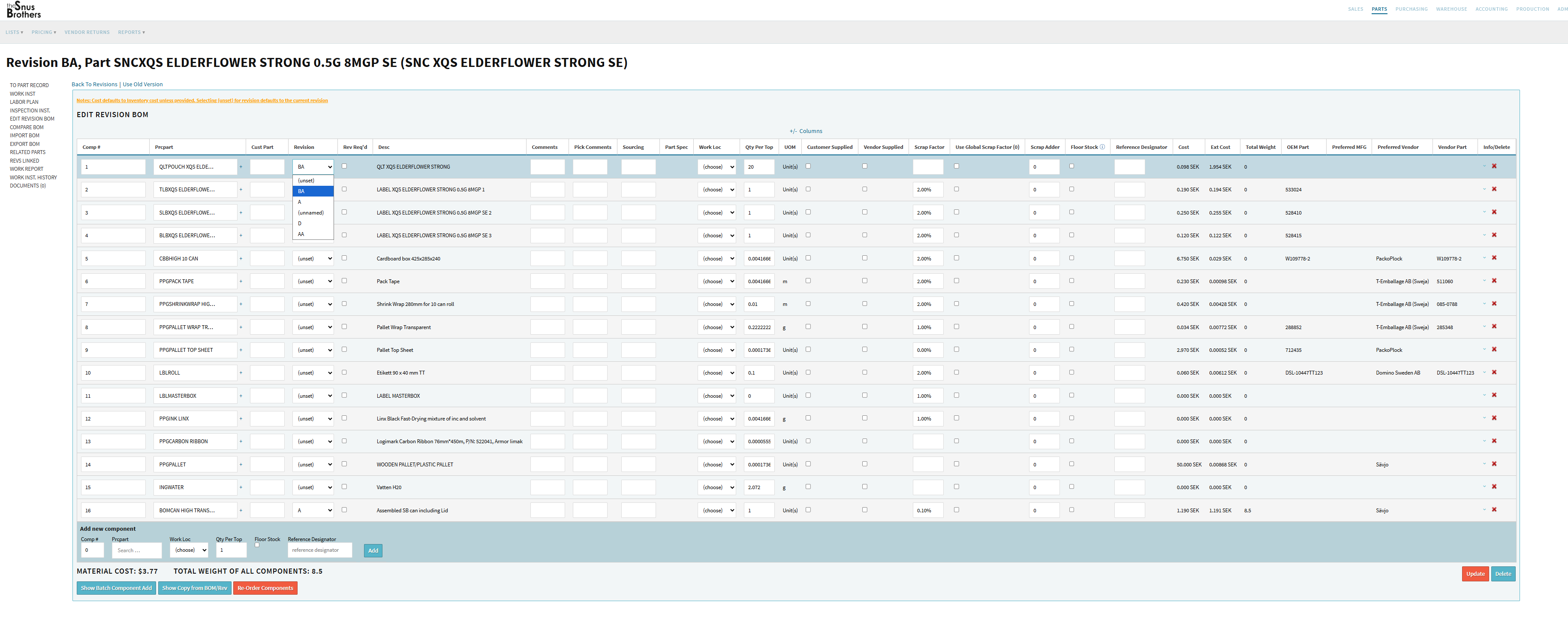
If I Set revision BA for my QLTPOUCH XQS ELDERFLOWER …
In my BOM for Part SNCXQS ELDERFLOWER STRONG with revision BA…
It will never automatically change that revision to something else.
However if I do not set a revision i.e keep it to unset it will always choose the latest.
So if you uplaod a new revision you can say that it automatically changes revision for the
Part SNCXQS ELDERFLOWER STRONG with revision BA.
Thank you very much for your detailed input — I really appreciate you taking the time to review my issue.
To clarify my situation:
Yes, I have multiple revisions for the same part (example: G00 and G01), each revision used for different customers.
G01 is the current revision, but when I need to use G00 for a specific customer’s requirement, I manually select G00 on the order.
The issue:
When I commit the order, Cetec automatically replaces the G00 BOM data with the data from the current revision G01.
So even though I selected G00, the system overwrites it using the active revision’s components.
This is the core problem I am facing.
I need to keep multiple revisions for different customers without the system auto-replacing the data during order commit.
Any guidance or workaround would be extremely helpful.
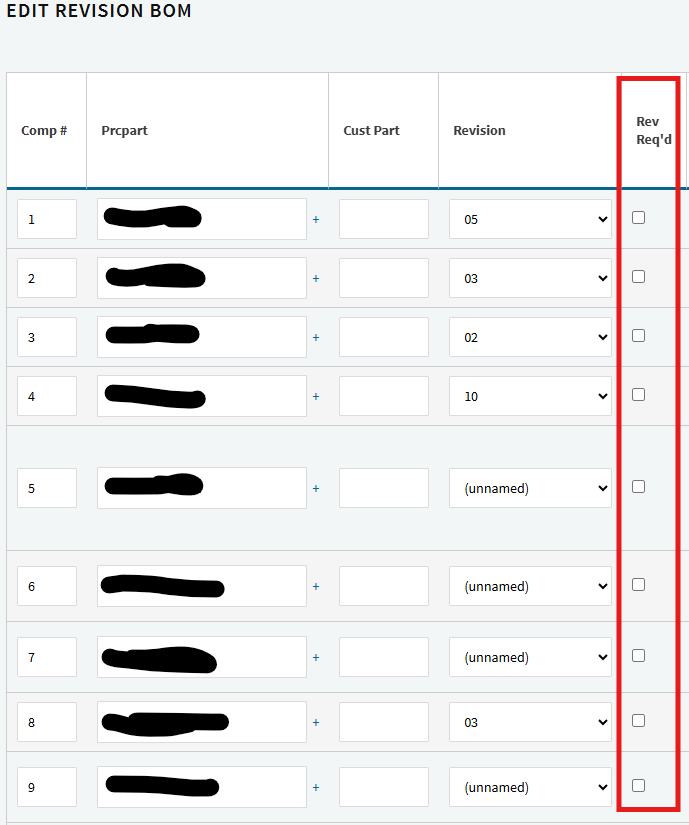
Under “Edit Revision-BOM”, you will need to select the ‘REV REQD’ checkbox for Components whose ‘REV’ you want to enforce the system to Pick and NOT default to the current Rev.
Thank you for your response and for sharing this suggestion.
I have already tried using the ‘REV REQD’ checkbox under Edit Revision-BOM, but unfortunately this does not solve the issue in my case. Even with REV REQD enabled, the system still replaces the selected revision’s (G00) components with the current/active revision (G01) when committing the order.
So the issue is still present.
If there is any other configuration or recommended workflow to prevent this auto-replacement, I would really appreciate further guidance.
Cetec only allows one revision to be marked as “Current” at any given time. For example:
Customer A requires BOM A – Revision C, so we set Revision C as Current.
At the same time, Customer B requires BOM A – Revision A, which is not the current revision.
Both sales enquiries are created, two quotes are generated, and both are sent for approval.
Here is where the issue appears:
When we approve and commit the quote that uses Revision C (current), everything works correctly.
However, when we approve and commit the quote that uses Revision A (not current), Cetec automatically replaces the selected revision’s BOM data with the BOM data from the current revision (Revision C).
So even though the salesperson selected Revision A for Customer B, after committing the quote to an order, the system overwrites it with the BOM from the current revision.
It is not a practical or efficient solution for us to create only one quote at a time, wait for it to be approved, and then create the second quote. This causes delays in our workflow and is not realistic for our operations.
Also, consider this real scenario:
A single customer may want the same part but with two different packagings. In that case, we create two different revisions, each with different BOM data. The customer wants both revisions in the same order.
With the current system behavior, when we commit that order, the revision that is not marked as “current” gets its BOM data automatically replaced by the current revision. This makes it impossible to ship two different packagings of the same part in one order.
This is a major issue we are facing and need a workable solution for managing multiple revisions in parallel.
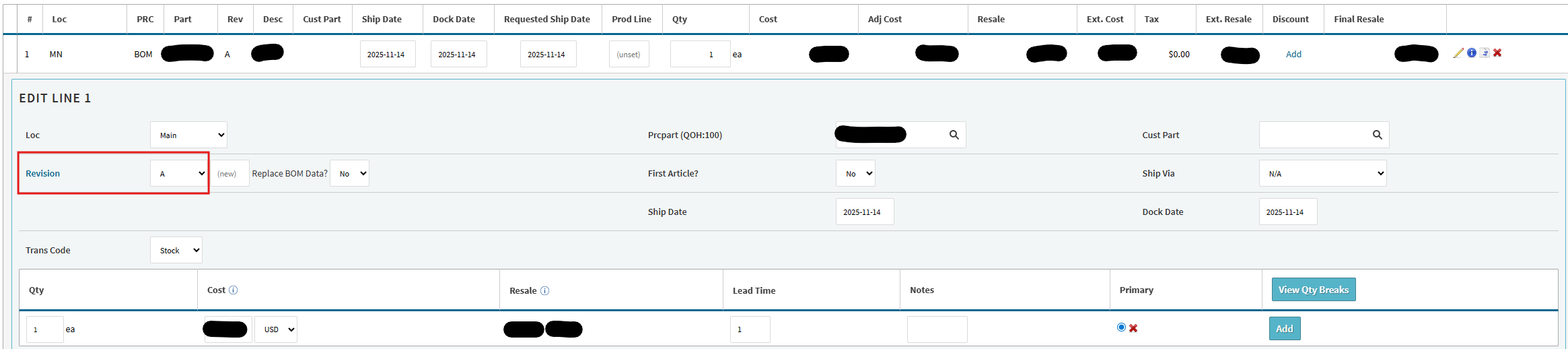
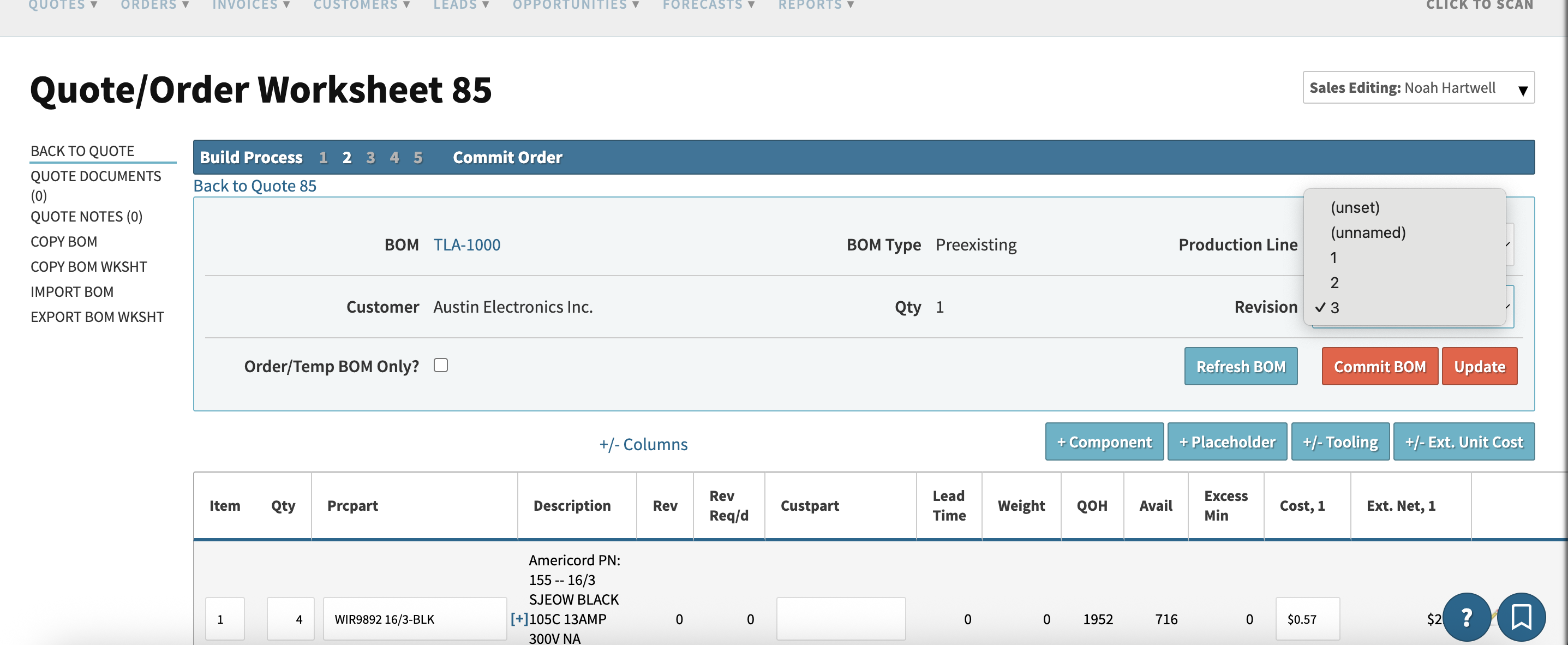
Why would the estimating tool (BOMQuote Worksheet) not work in this scenario? This estimating tool allows you to specify a new revision (or, one that is not the Current on the BOM record) on a per-order, per-customer basis:
This gives you that flexibility of multiple customers demanding different versions or revisions of the same assembly. You are correct that if you simply attach the BOM to the quote, and commit to order, Cetec will automatically pull in that current revision that lives on the permanent BOM record.
You can also edit the order BOM after committing it to order if you need to as well.
In order to avoid creating objects in your live environment, I will instead refer you to documentation and how-to videos found on our website to assist you further in using our estimating tool: Quoting, BOM Estimation, Job Costing, & Order Entry (navigate to “Quote Level BOM Management & Estimation”).
Essentially, the gist of my recommendation is to use the BOM Worksheet, or our estimating tool to quote your assemblies that fall within this scenario of a slightly different version or revision for an existing BOM. This feature is exactly what this was written for. Using the BOM Worksheet allows for changes and updates of a permanent BOM record to only affect the associated order/customer.
Hey Rana,
I think that the explanation given by @cetecerp20 should solve your issues.
But if it does not …
Maybe you can take us through the process you use when creating these orders (preferably with a screen shot of every step).